
How to Use Our Colour Mixer Tool to Create Custom Shades for UI Design (Pro Guide 2025)
Introduction
Designing a modern interface is more than choosing attractive colors. It’s about balance, usability, and emotional connection. This is where a Colour Mixer tool becomes essential. Instead of relying on random palettes, designers can create precise and consistent custom shades for UI design that align with brand identity and accessibility standards.
Whether you’re a UI/UX designer, product manager, or developer, using a Colour Mixer tool simplifies color experimentation. It helps you visualize results instantly, maintain harmony, and ensure your designs look professional across devices. In this guide, you’ll learn exactly how to use our Colour Mixer tool step by step, apply it to real UI components, and avoid common design pitfalls—without feeling overwhelmed.
“Color is a power which directly influences the soul.” — Wassily Kandinsky
What Is a Colour Mixer Tool?
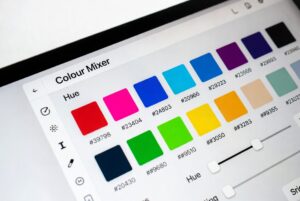
A Colour Mixer tool is a digital utility that allows users to blend colors and generate new shades by adjusting parameters like hue, saturation, and brightness.
Why UI Designers Need Custom Color Shades
Pre-made palettes are useful, but they’re limiting. Custom shades for UI design allow you to:
- Match brand guidelines precisely
- Improve readability and contrast
- Create emotional consistency
- Design scalable systems
Benefits of Using a Colour Mixer Tool for UI Design
✅ Consistency Across Interfaces
Consistency builds trust. A Colour Mixer tool ensures the same shade is used across buttons, headers, and icons.
Faster Design Workflow
Instead of guessing hex values, designers can instantly generate shades, saving time and reducing revisions.
Understanding Color Theory Basics
Before using any Colour Mixer tool, it helps to know the basics.
RGB, HEX, and HSL Explained
| Format | Use Case |
| RGB | Screens and displays |
| HEX | Web development |
| HSL | Easier shade adjustment |
Color Harmony and Contrast
Good UI design relies on harmony. Complementary and analogous colors improve visual flow and usability.
How Our Colour Mixer Tool Works
Interface Overview
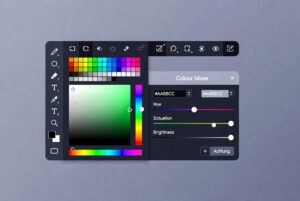
Our Colour Mixer tool features:
- Color sliders (RGB, HSL)
- Live preview panel
- Copy-ready HEX/RGB codes
- UI component previews
Mixing Primary Colors
You can mix red, green, and blue values or adjust hue and saturation for smoother shade control.
Step-by-Step Guide to Create Custom Shades
Step 1: Choose Base Colors
Start with a primary brand color. This keeps your custom shades for UI design aligned with branding.
Step 2: Adjust Sliders
Use sliders to fine-tune:
- Brightness for depth
- Saturation for emotion
- Hue for variation
Step 3: Preview in UI Components
Instantly see how your shade looks on buttons, cards, and backgrounds.
Using Custom Shades for UI Design Systems
Buttons, Text, and Backgrounds
A design system needs shades for:
- Primary buttons
- Hover states
- Disabled states
Our Colour Mixer tool helps generate all variants from one base color.
Dark Mode and Light Mode
Custom shades for UI design are critical for dark mode. Slight changes in brightness can improve readability dramatically.
Accessibility and WCAG Compliance
Accessibility isn’t optional.
Contrast Ratio Testing
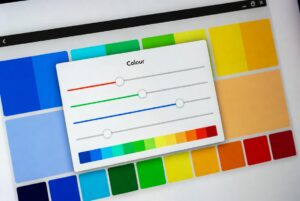
Our Colour Mixer tool helps maintain WCAG-compliant contrast ratios. For official guidelines, refer to the W3C WCAG documentation:
👉 https://www.w3.org/WAI/standards-guidelines/wcag/
Best Practices for UI Color Customization
- Stick to 1–2 primary colors
- Use shades, not random colors
- Test across devices
- Document your palette
Common Mistakes to Avoid
- Overusing saturated colors
- Ignoring accessibility contrast
- Mixing too many hues
- Not testing in real UI layouts
Frequently Asked Questions (FAQs)
- What is a Colour Mixer tool used for?
A Colour Mixer tool is used to create, adjust, and refine colors for digital designs, especially UI design.
- Can beginners use a Colour Mixer tool?
Yes, our tool is beginner-friendly with visual sliders and instant previews.
- Is it suitable for professional UI design?
Absolutely. It supports design systems, accessibility, and brand consistency.
- Does it support HEX and RGB formats?
Yes, it supports HEX, RGB, and HSL formats.
- How does it help with accessibility?
It helps maintain contrast ratios suitable for WCAG standards.
- Can I use it for dark mode design?
Yes, creating custom shades for UI design in dark mode is one of its strongest features.
Conclusion
Creating visually appealing and accessible interfaces doesn’t have to be complicated. With our Colour Mixer tool, you can confidently generate custom shades for UI design that enhance usability, maintain brand consistency, and speed up your workflow. From beginners to seasoned professionals, this tool bridges creativity and precision.
If you want better UI results without guesswork, start using the Colour Mixer tool today. Experiment, refine, and build interfaces users love. 🎯